evl-lib
8. Using the map
Opening it
- Tools > EVL > Open EVL Map, or
⌥⌘E/Ctrl+Alt+Shift+E. - The EVL tool window on the left lists every flow as a tree, with an icon for each kind (endpoint, job, decision, loop, error…). Double-click a node, or press Enter, to show it on the map. Type in its search box to filter.
- Click the EVL gutter icon next to any
@Flowor// @flowline to jump to that path on the map.
Reading the views
- Root: every flow, with callers and schedulers on the left and resources on the right.
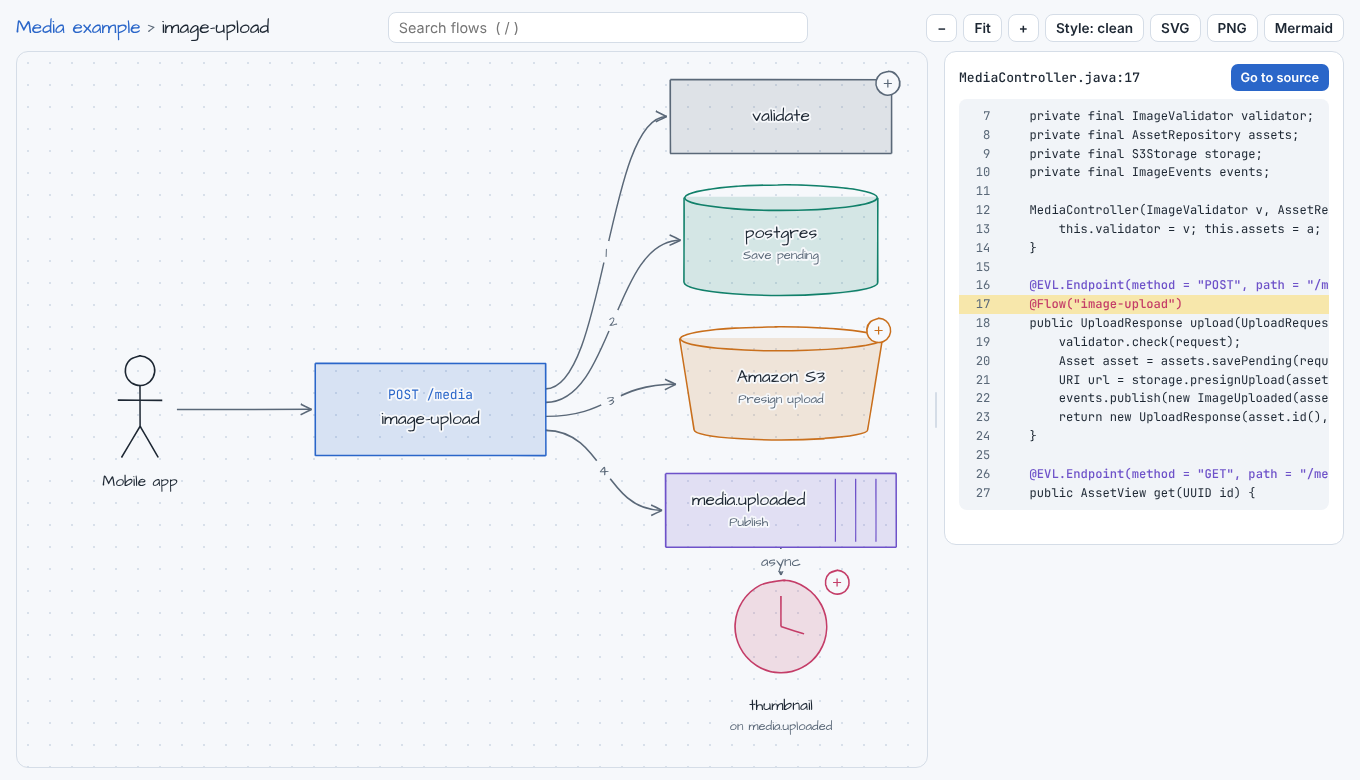
- A flow’s level: the flow and its steps, numbered in call order, with arrows to the resources each step uses.
Mouse and keyboard
| Do this | To |
|---|---|
| Click a box | select it and show its code on the right |
| Click + on a box | draw its steps here, in the same view (it turns into − to fold them) |
| Click a selected box again | same as + |
⌘/Ctrl + click + or a box |
open it in a fresh view of its own |
| Double-click a box | go to its code |
⌘B / Ctrl+B |
go to the selected box’s code |
| Breadcrumbs at the top | go back up; Backspace or Esc also goes up one level |
| Mouse wheel or two-finger swipe | pan |
| Drag the background, or drag with the middle button | pan |
⌘/Ctrl + wheel, or pinch |
zoom at the cursor |
| −, Fit, + | zoom out, fit everything, zoom in |
Drag the bar between the map and the code panel to resize the panel; EVL remembers the width.
Search
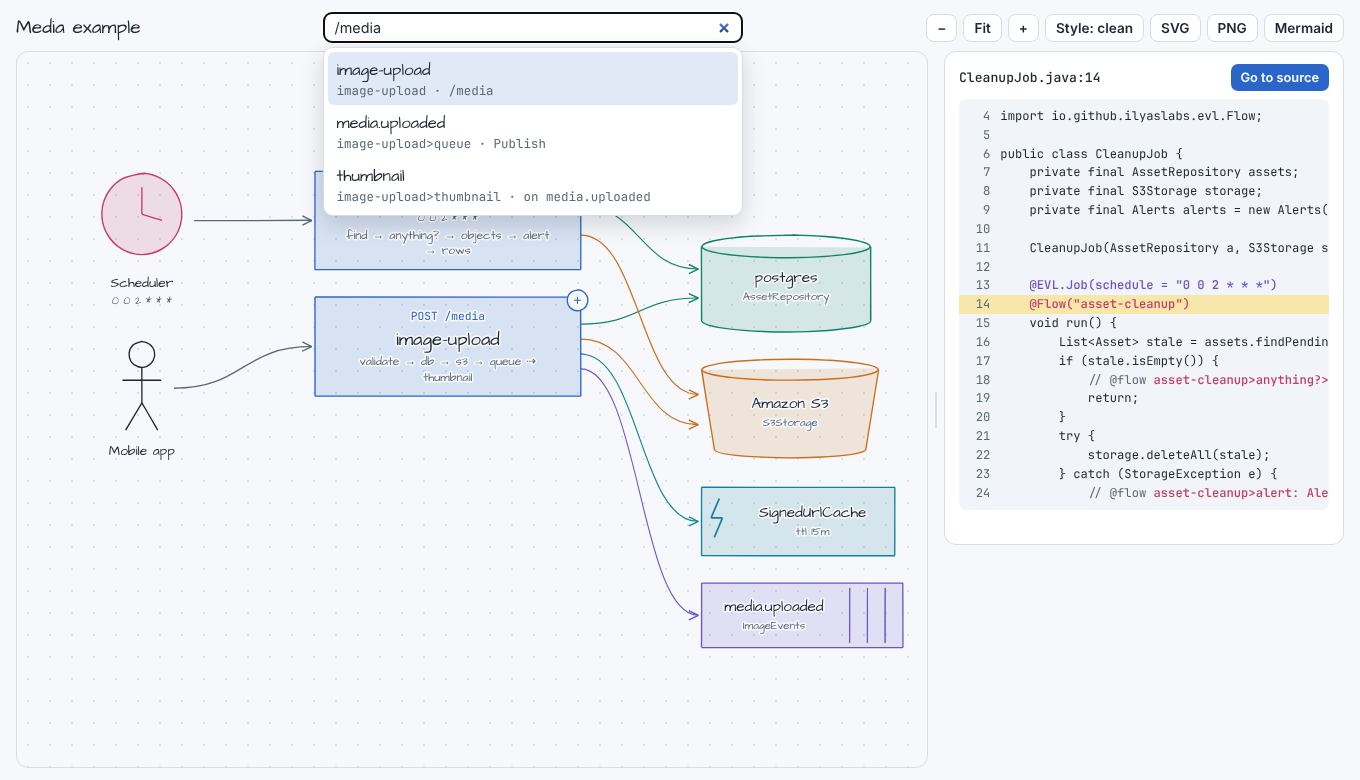
Type in the search box (or press /). It matches path ids, labels, descriptions and endpoint paths, including the class-level prefix, so /uploads, v1 media or thumbnail all work. Pick a result to jump to it.
Clean and sketchy
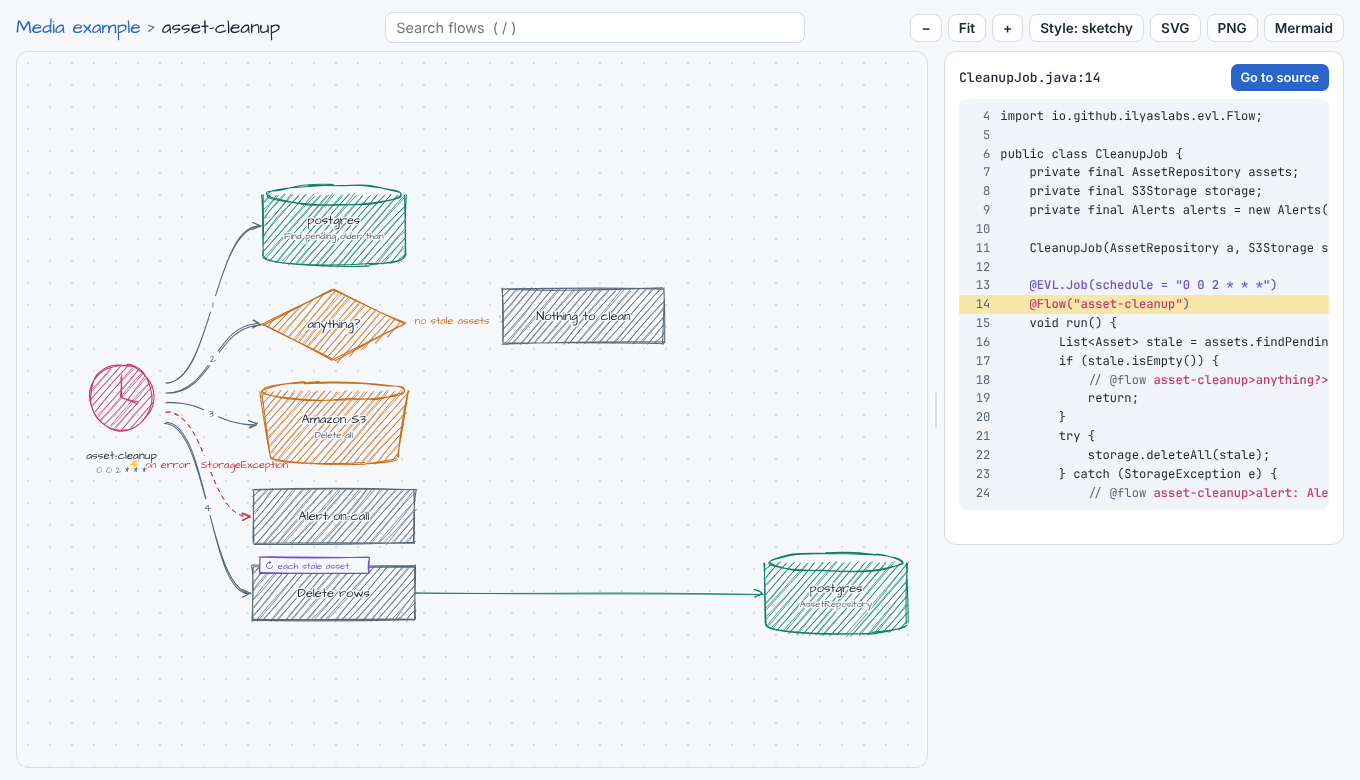
The map draws in a clean style by default. Style: clean switches to the hand-drawn sketchy style, handy for slides and design reviews:
Export
The toolbar’s SVG, PNG and Mermaid buttons save exactly what you see:
- SVG: a vector image with the font embedded, for docs and wikis.
- PNG: a 2× image for chats and slides.
- Mermaid: a
flowchart LRyou can paste into a README or pull request, where GitHub renders it.
In the IDE, a save dialog asks where to put the file.
Free and Pro
The plugin is free to use with up to 10 flows: the live map, expand in place, code peek, search, the tool window tree and gutter icons. EVL Pro (Help > Register, with a free trial) adds:
- every flow, however large the project;
- export to SVG, PNG and Mermaid;
- presentation mode (Present: only the map, larger, with the tool windows hidden;
Escto leave).
On the free plan a note above the map says how many flows are hidden, and Pro buttons carry a small PRO mark. The annotations, the CLI and the AI skills are open source and free.
Problems
If a tag has a problem (a bad path, a path tagged twice, an after that points nowhere), a Problems card appears on the right with the file and line. Chapter 11 lists every message.
Next: The CLI